Apple’s iPhone 15 Pro Series witnesses screen burn-in issues
Apple’s iPhone 15 Pro Series witnesses screen burn-in issues
 |
|
With
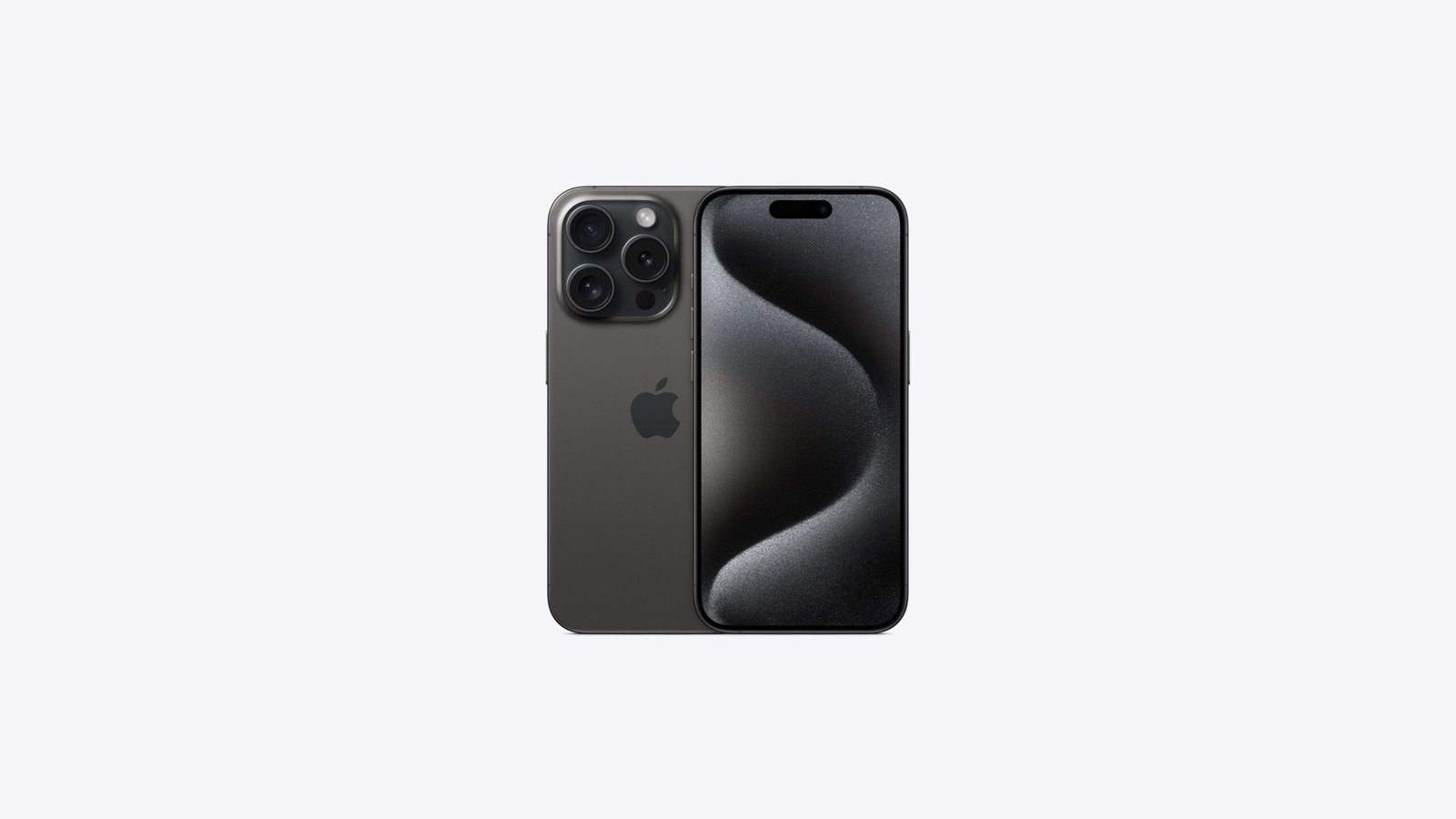
the release of the iPhone 15 series, Apple experienced many problems regarding
the phone. Alongside, overheating and battery draining issues now reportedly
iPhone is facing problems regarding screen burn-in issues. In the recent past,
iPhone 15 pro and iPhone 15 pro max models got iOS 17.0.3 which resolved the overheating
issues.
However,
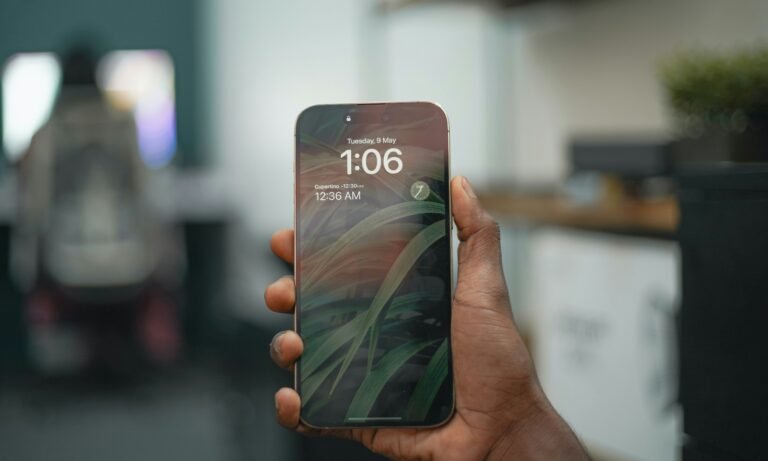
some iPhone 15 pro users are still experiencing screen burn-in issues. A recent
picture posted on Twitter by Tarun Vats , a well-known Tech enthusiasts, also confirmed that people are
facing these issues.
Apple’s iPhone 15 Pro Max is reportedly experiencing screen burn-in issues, adding to a growing list of problems for the company this year.#iPhone15Series #iphone15pro #Apple pic.twitter.com/HDsQ0iccHw
— Tarun Vats (@tarunvats33) October 11, 2023
Many
other users also experienced this type of issue and posted it in the Apple community. Surfphysics also experiencing this type of
issue and claims that this issue comes just after 2 weeks of use of iPhone 15
pro max.
This
issue also adds up to a new concerning issue for the company alongside other
issues.
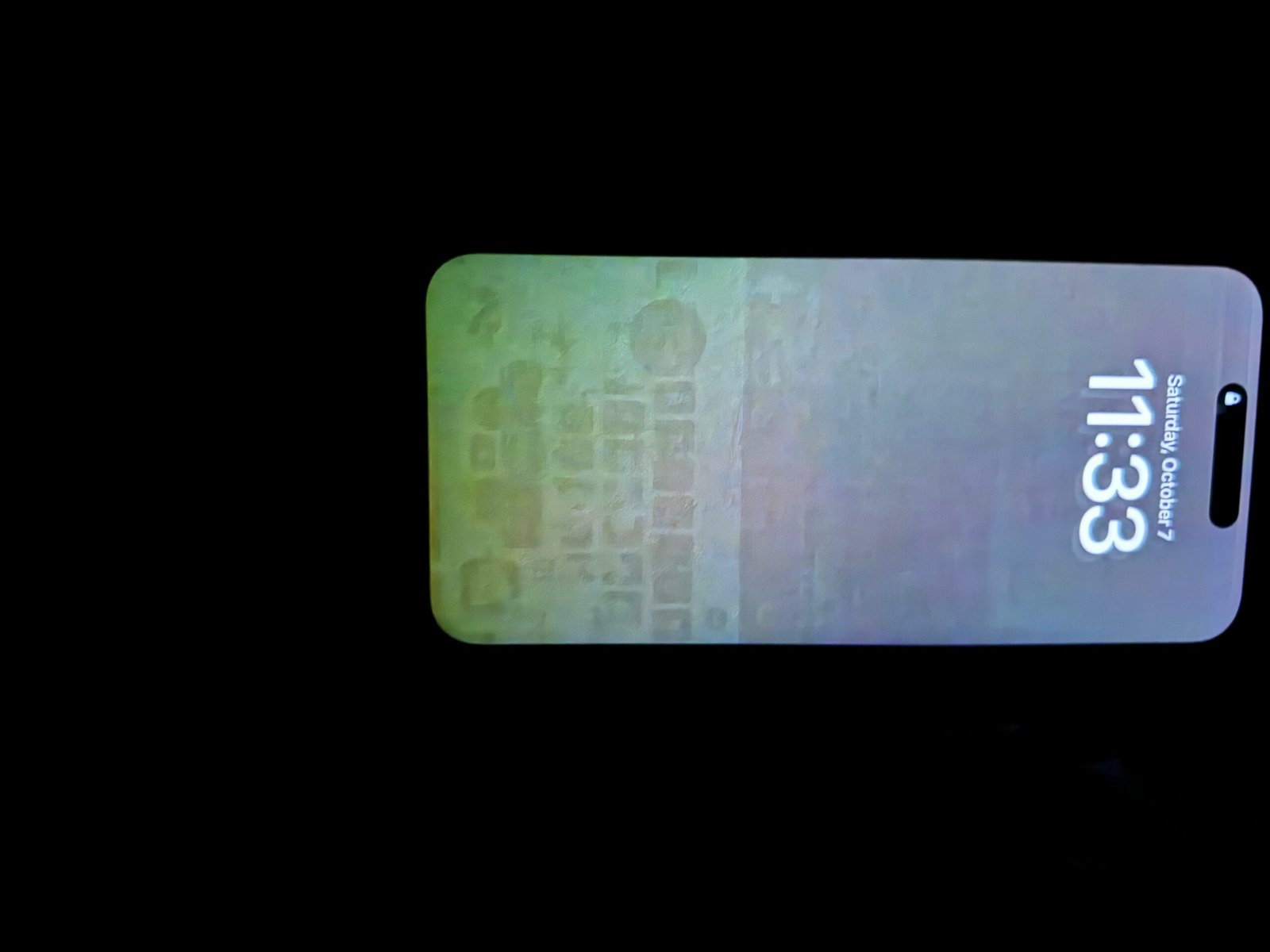 |
| Apple community |
What is screen Retention or Screen burn-in
According to the PiunikaWeb reports, this
issue may be due to different types of issues such as screen defects by a user,
an OLED screen display issue due to an extended duration of display of image,
and a software bug. This report also published a screen retention fix.
How to Fix Screen burn-in
To address Screen burn-in , reported by PiunikaWeb, you can used a screen saver regularly. Screen
retention is due to the display of the image to the extended duration which
causes the pixels to burn. For manually setting the screen saver Navigate to
Apple Menu >System Preferences>Desktop and Screen Saver. Now manually set
the screen saver according to your preference.
Adjust the menu labeled “Start after” to pick an interval
shorter than the duration you’ve set for display sleep and computer sleep
within the Energy Saver settings in System Preferences.