

In this article
How to Update Your AirPods: Apple’s Official Guide
Finally, Apple Tells Us the Secret to Updating AirPods
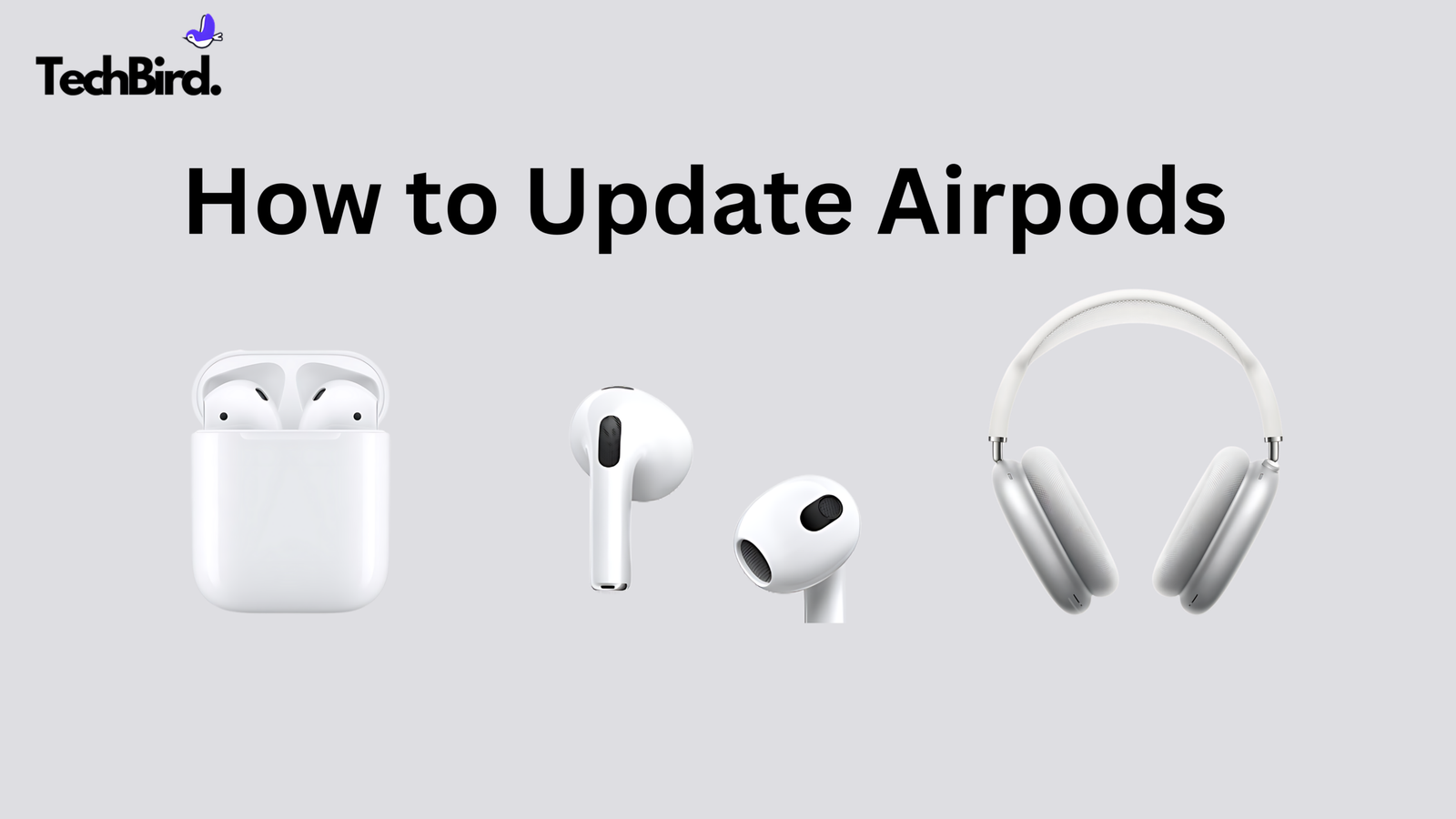
Hey AirPods users! Ever struggled with firmware
updates? You’re not alone. But good news: Apple has finally updated its support page, providing clearer instructions for updating your AirPods, AirPods
Pro, and AirPods Max. No more guessing
games! Now, updating your AirPods firmware is as simple as placing them in the
charging case while it’s charging for 30 minutes. Just make sure your AirPods are connected to
your iPhone, iPad, or Mac via Bluetooth.
Simpler Updates, Clearer Guidance
Previously, Apple’s support page lacked crucial details,
like the exact time required for the update process and the importance of
keeping the charging case connected to power.
The update process itself remains automatic, happening silently in the
background without notifications. This
meant users often had to manually check their AirPods’ firmware version to see
if the update had been successful. But
now, with Apple’s updated guidance, the process is much more transparent.
Updating Your AirPods or AirPods Pro Firmware:
Here’s a breakdown of the updated steps for updating your
AirPods and AirPods Pro:
- Get Connected: Ensure your AirPods are within Bluetooth
range of your iPhone, iPad, or Mac, and that the device is connected to Wi-Fi. - Charge and Wait: Place your AirPods in their charging case
and close the lid. Connect the charging cable to your charging case and then to
a USB charger or port. Keep the lid closed for at least 30 minutes. This allows
ample time for the firmware to download and install. - Reconnect and Verify: Open the lid of the charging case to
reconnect your AirPods to your iPhone, iPad, or Mac. Check the firmware version
to confirm the update.
If you encounter any issues, Apple recommends resetting your
AirPods and trying the update process again.
Updating Your AirPods Max Firmware:
Updating your AirPods Max follows a similar process:
- Get Connected: Make sure your AirPods Max are within
Bluetooth range of your iPhone, iPad, or Mac that’s connected to Wi-Fi. - Charge and Wait: Plug the charging cable into the
bottom-right earcup of your AirPods Max, and connect the other end to a USB
charger or port. Wait at least 30 minutes for the firmware to update. - Reconnect and Verify: Reconnect your AirPods Max to your
iPhone, iPad, or Mac. Check the firmware version to confirm the update.
A Welcome Change for AirPods Users
While the underlying firmware update mechanism remains the
same (automatic background installation), the updated support page provides
much-needed clarity for users. The
ability to proactively initiate the update process gives users more control
over their AirPods experience.