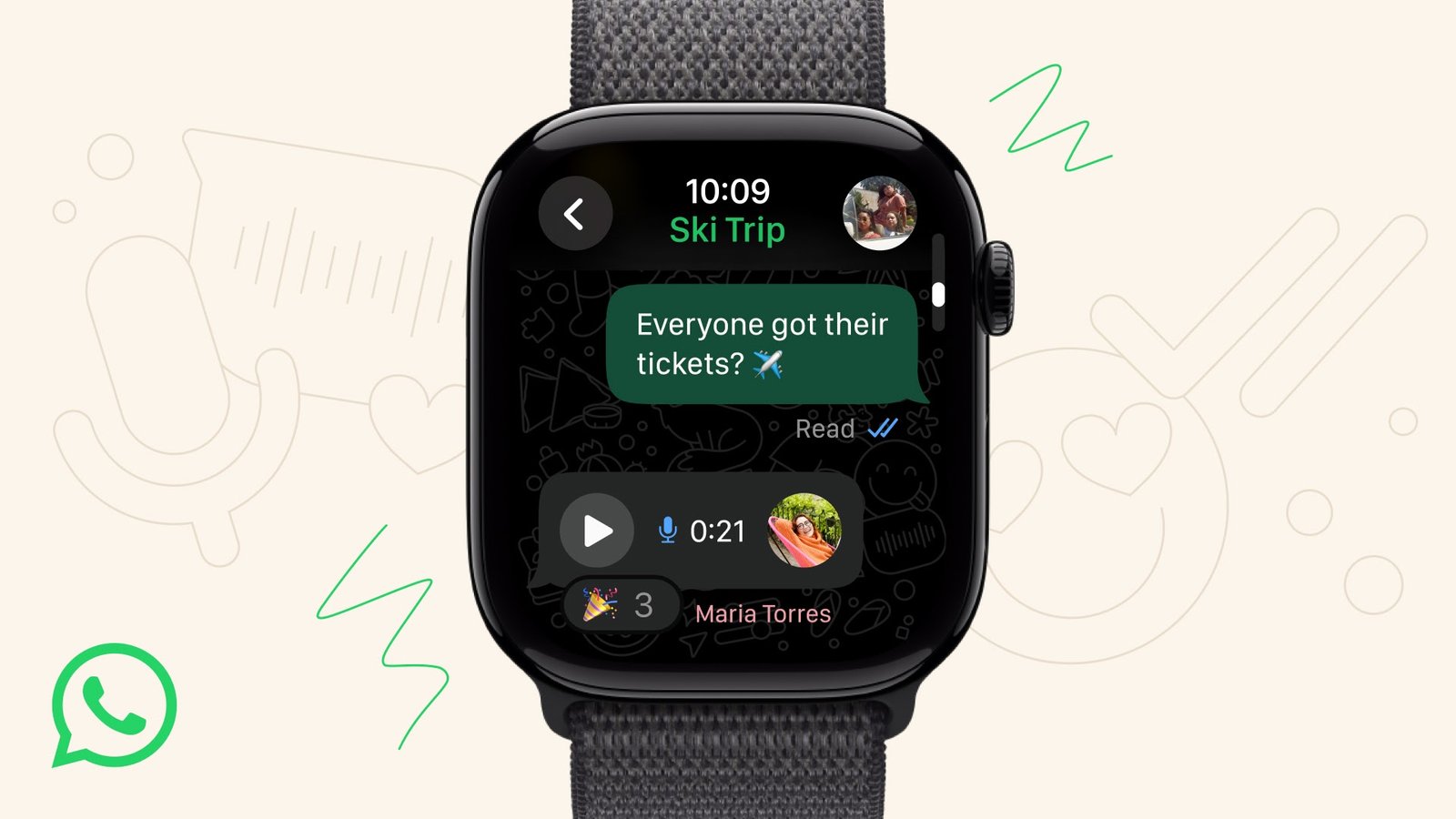


How to setup a passkey on WhatsApp
WhatsApp now allows
users to log in with a passkey, such as facial recognition and biometric
authentication, instead of the two-factor authentication.

In this article
In a September beta
update, WhatsApp is working on this feature, which has been now rolled out
worldwide. On Tuesday, Meta owned WhatsApp through its official X (previously
known as Twitter) handle, introduced a new passkeys feature for Android user.
WhatsApp announced that Android users can now use their face, fingers and
passkey as a login authentication for their account.
Android users can easily and securely log back in with passkeys 🔑 only your face, finger print, or pin unlocks your WhatsApp account pic.twitter.com/In3OaWKqhy
— WhatsApp (@WhatsApp) October 16, 2023
Passkeys feature provide a reliable security for user, which is not
possible with old-style two factor authentication such as OTP verification
through SMS and email. This feature stores your password as a unique passkey on
your device, which can be accessed through biometric authentication. Meanwhile, for
setting up a WhatsApp account on your new phone not required too much time, as
your passkeys will be stored in Google Password Manager, which is a good
initiative by WhatsApp.
Steps of creating a Passkey on WhatsApp
For creating a passkey
on WhatsApp requires following steps:
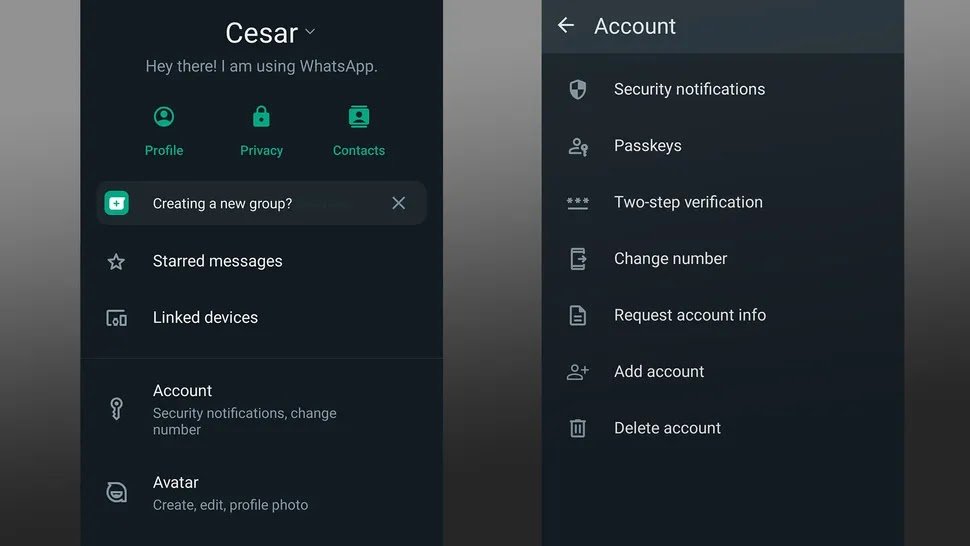
- Launch WhatsApp on your device and tap the three dots
on the right top corner. Now select the “Account” option from the menu.
 |
| Image: Future |
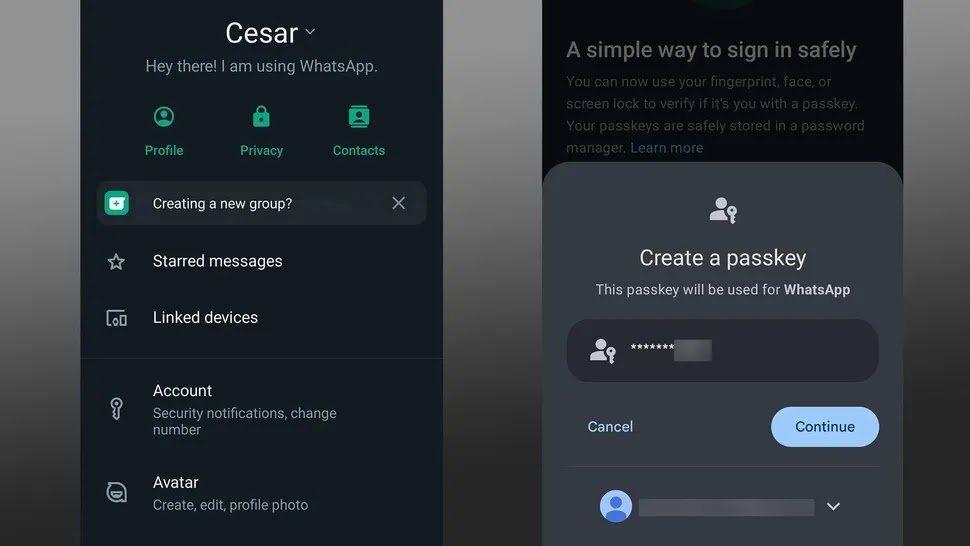
- Select “Passkeys” from the screen menu, and then Click
on “Create a Passkey” button. A message display at the bottom of the
window for accessing your information.
 |
| Image: Future |
- Now you will be asked to create a new passkey using screen
code or by creating a new PIN code.
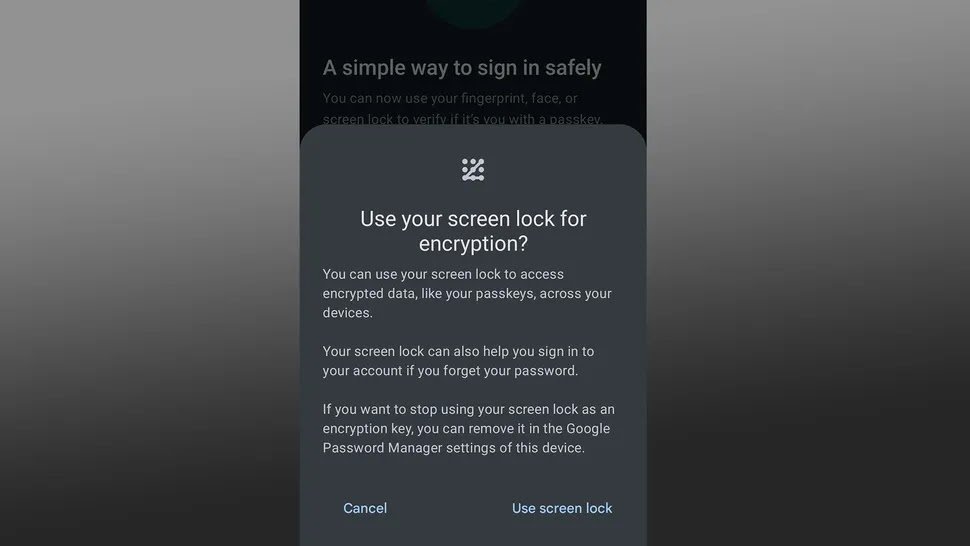
- A window appears, asking you to encrypt your passkey
with a screen lock, either biometric or a screen code. If you’ve already set
up a biometric on your phone, you can just connect it with the app.
Otherwise, set a fingerprint for the app.
 |
| Image: Future |
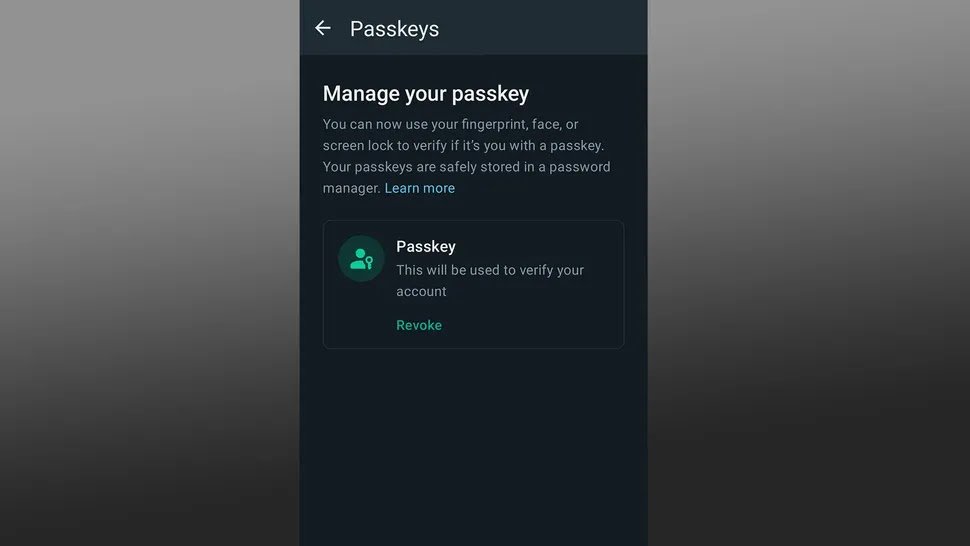
- After you’ve completed
these steps, you will have the option to revoke the passkey in case of creating
a new passkey.
 |
| Image: Future |